How to make AI videos: a beginner's guide
Never made an AI video? This guide takes you from zero to your first good clip. You'll see what each model in Dora is for, how to write a prompt and what to avoid.
Two ways to start: text or photo
- Text to video: you describe a scene and the model invents everything: people, place, light. Best for ideas, scenes that don't exist and stories.
- Photo to video: you upload a photo and describe what should move. The model keeps your photo's person, clothes and place. Best for bringing a real moment to life: a portrait, an old family photo, a pet, a painting.
If you're starting out, start with a photo. The model already knows what everything looks like, so you only have to describe the movement.
The models in Dora and what each one is for
Every model below comes with a Dora plan. Start each one on its shortest, lowest-quality setting: it is the best way to test an idea.
| Model | Use it for |
|---|---|
| Seedance 2 Mini (default) | Everyday photo or text to video. Good quality. Start here. |
| Grok Imagine 1.5 | A quick way to test an idea, with natural motion and sound. |
| Grok | Simple photo to video. |
| Veo 3.1 Lite / Veo 3.1 | Google's video models, with sound. |
| Seedance 2 | The highest quality, with sound. Up to 7 reference photos. For the final version of an idea that already works. |
| Seedance 2 Fast | A look close to Seedance 2. |
| Same Character (Kling Omni) | The same person in several clips: give it up to 7 photos of them. |
| Motion Control | Copy the movement from a video onto the person in your photo. Needs a photo and a short clip. |
| Lip Sync | Make the person in a photo talk or sing along to an audio file. |
| Gemini Omni | Video from text, photos or a video clip. |
| Nano Banana 2 (image) | Create or change a photo first, then animate it. |
Other video models in Dora are Wan 3.0, MiniMax H3, Kling 2.6, Kling 3.0 Turbo, Kling 4.0 and Seedance 2.5. All of them are compared on the models page.
One example per model (prompt + result)
- Seedance 2 Mini, photo to video: “The woman from the photo walks toward the camera across the bright room, smiles and waves, her hair moving slightly, handheld camera, natural daylight.” → see the result
- Veo 3.1, same photo, same prompt: see the result Compare it with the Mini result to see the difference.
- Nano Banana 2, photo to new photo: “Turn the person in the reference photo into a classical oil painting with visible brushwork: same face…” → see the result
- Seedance 2 Mini, old-photo look: “She smiles, turns to the table and switches the lamp off and on… golden 1970s film look with slight grain.” → see the result
- Seedance 2 Mini, something impossible: “The giant calico cat walks up, lies down by the curb like a taxi, the salaryman climbs on its back and it walks away down the street; handheld phone at night.” → see the result
How to write a prompt that works
Use five parts, in this order:
- Who: “the woman from the photo”, “the dog”, “the man in the painting”. With a photo, always say from the photo so the face stays the same.
- One clear action: walks, laughs, turns, opens a door. One or two per clip, not five.
- One small detail that moves: hair, leaves, steam, light. This is what makes it look alive.
- The camera: “fixed camera” keeps faces sharp; “handheld” feels like a phone video; “slow push in” feels like film.
- The look: “natural daylight”, “1970s film look with slight grain”, “night, neon lights”.
Example: The man from the photo laughs and pulls his sunglasses down, palm leaves moving in the breeze, fixed camera, washed 1990s film look.
How to animate a photo, step by step
- Go to doravideo.com and add your photo. Use a sharp photo with the face large and well lit.
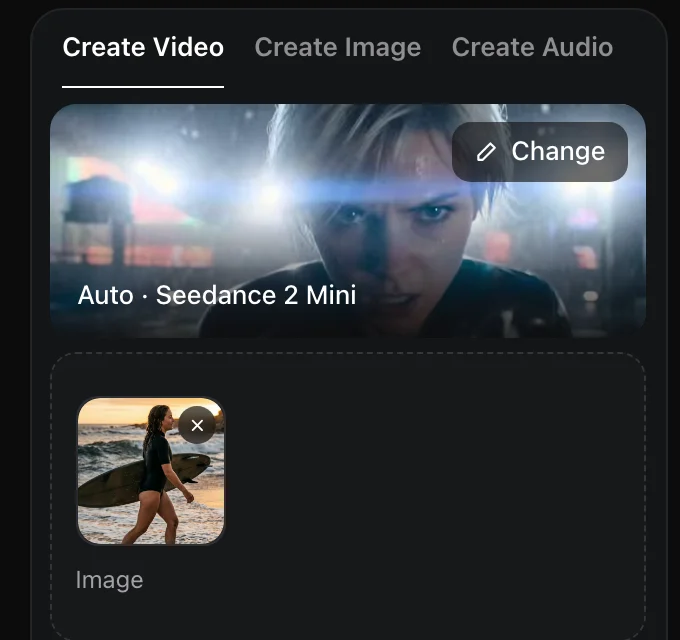
- Pick Seedance 2 Mini.
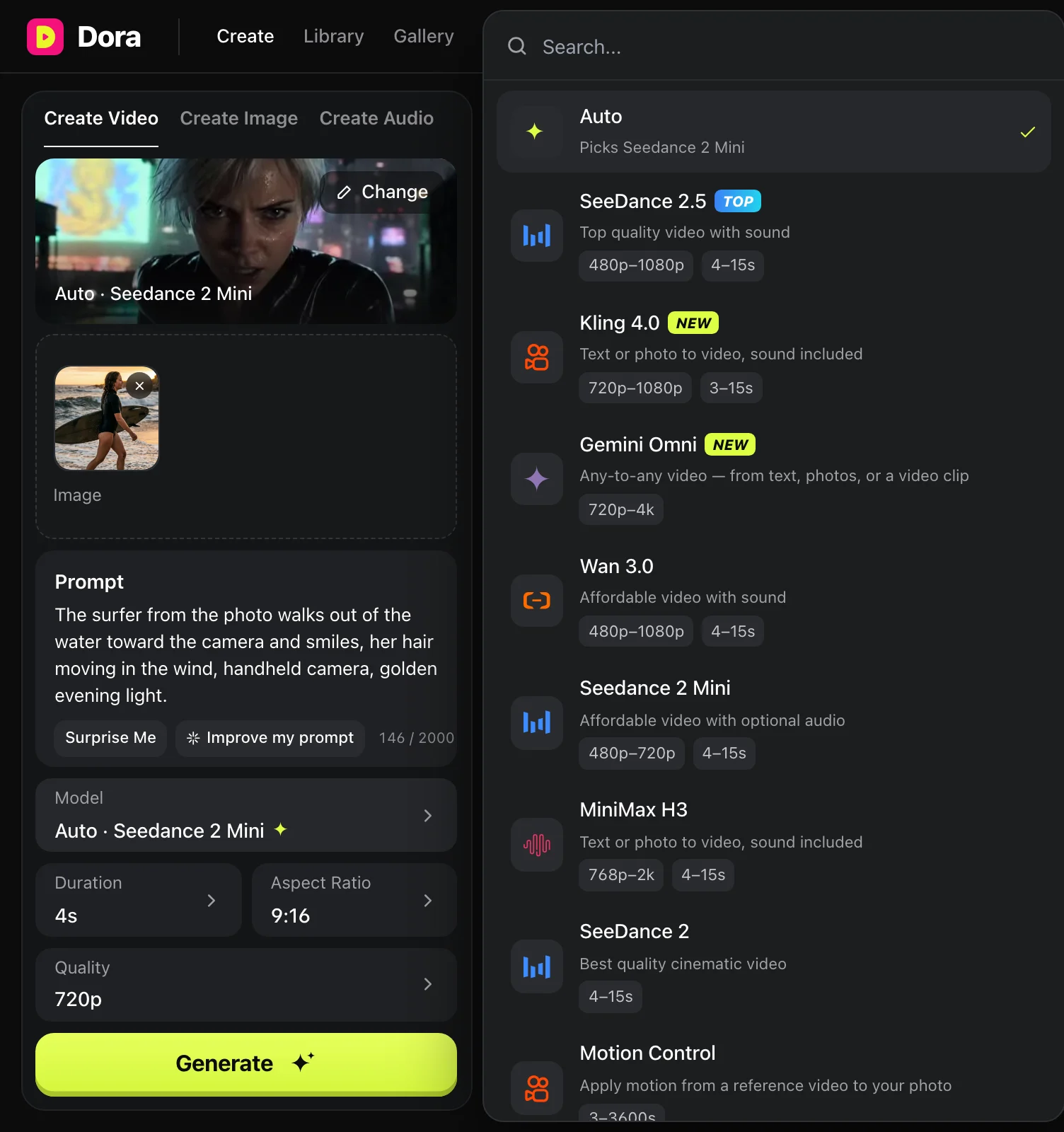
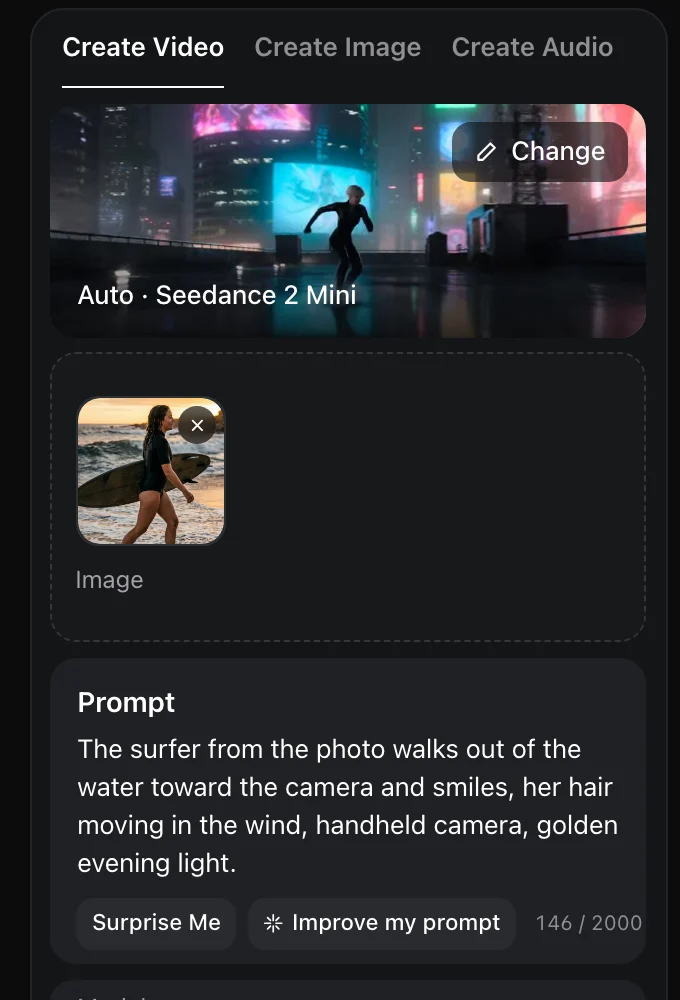
- Write what should move, using the five parts above.
- Choose the shape: 9:16 for Reels, TikTok and Stories, 16:9 for YouTube.
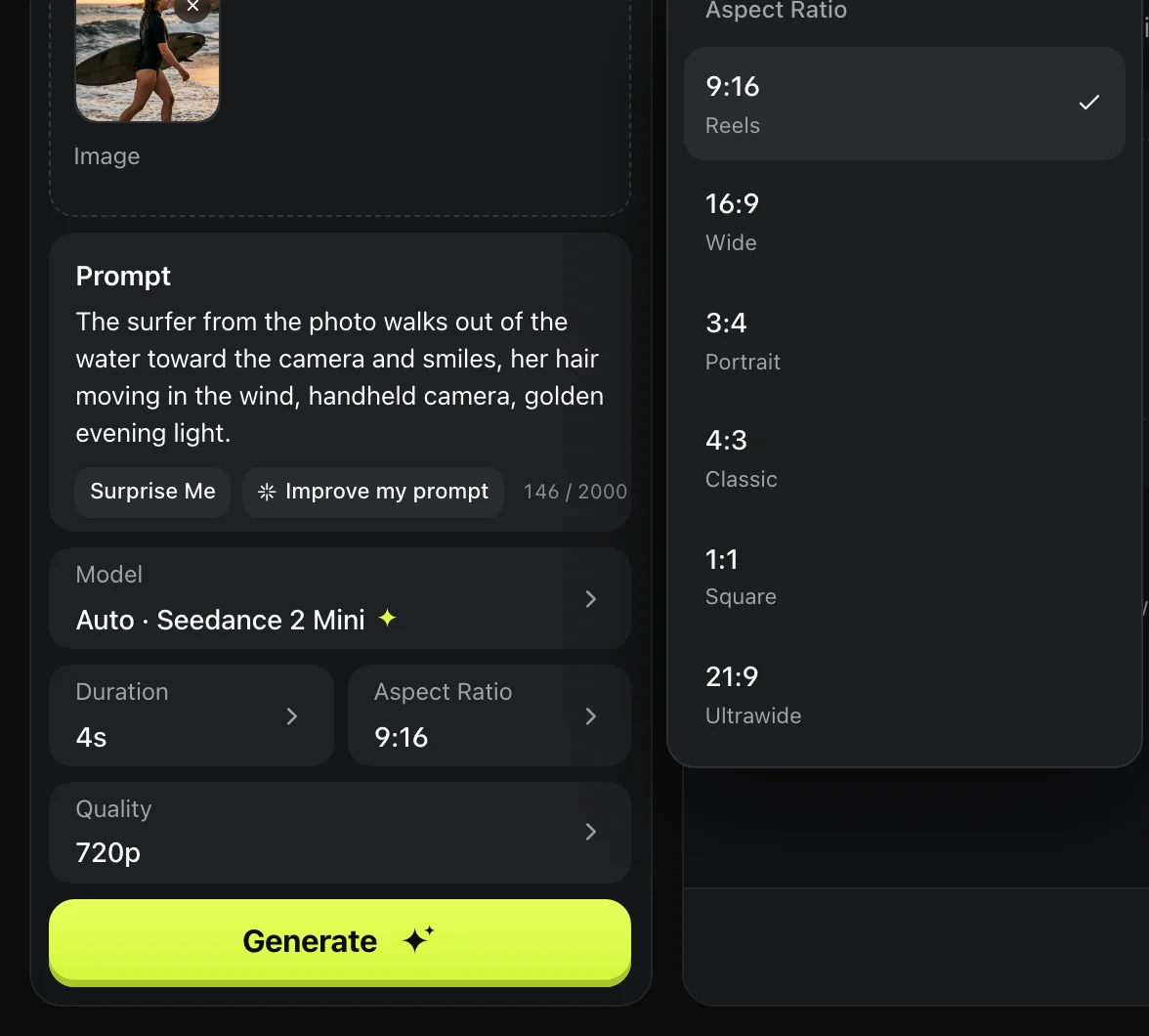
- Start with 4 seconds at 720p, the default. It's the simplest way to see if the idea works.
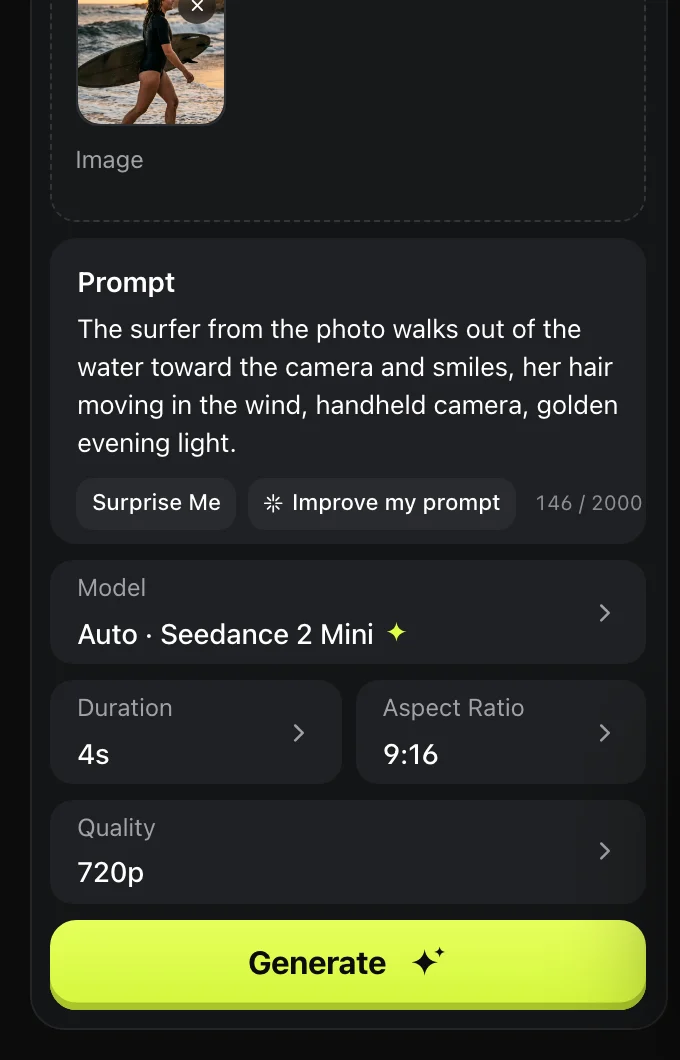
- Press Generate. Your video comes with no watermark.
- If you like it, make it longer or try Seedance 2 for the final version.
The mistakes everyone makes the first time
- Describing the photo instead of the movement. The model can already see the photo. Say what changes.
- Too much in one clip. In 4–8 seconds, one action looks good. Five actions look like chaos.
- Not saying “from the photo”. The face drifts into someone else.
- Small or blurry faces. Group photos and distant shots lose the face. Crop closer.
- Testing on the most advanced model. Find the idea on Seedance 2 Mini or Grok Imagine 1.5 first, then upgrade.
- Wrong shape. A 16:9 clip on Reels shows black bars. Pick 9:16 before you create.
- Text and logos in the video. AI video still writes words badly. Add text later in your editor.
- Expecting speech without Lip Sync. To make someone say specific words, use Lip Sync with your audio.
- Blocked prompts. Nudity, sexual content, minors in any sexual context and graphic violence are refused before anything is made. See the content policy.
FAQ
What's the difference between text to video and photo to video?
Text to video invents the whole scene from words. Photo to video starts from your photo and keeps its person and place.
Which AI video model should a beginner use?
Seedance 2 Mini, Dora's default: good quality for everyday photo or text to video.
Do I need a plan?
Yes. Videos are made with a Dora plan: one plan across Dora: web, iPhone and your AI assistant (see pricing).